Data Generation Suite
The Data Generation Suite (DGS) menu is used to create new suites, view the suite list, and manage existing suites. When the application is used for the first time, the Data Generation Suite page is empty.
Note
- If a suite is in Running status, it cannot be edited, deleted, or executed.
- If a suite has never been executed, History and Logs are disabled.
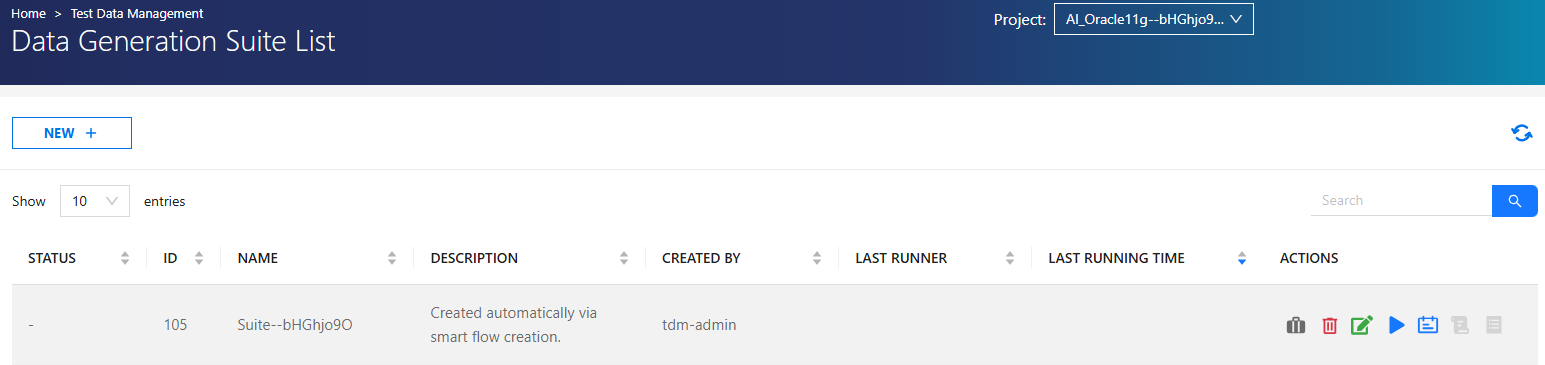
Actions
| Action | Description |
|---|---|
 |
Displays cases within the suite. See Data Generation Case for details. |
 |
Deletes the Data Generation Suite. |
 |
Updates name and description, adds new cases, or changes execution order. |
 |
Executes selected cases within the suite. |
 |
Schedules the suite for automatic execution. |
 |
Displays execution history. |
 |
Displays logs of the last execution. |
 |
Refreshes the suite list. |
 |
Creates a new Data Generation Suite. |
Status Indicators
- Running
 → Suite is currently executing
- Completed
 → Execution finished successfully
- Failed
 → Execution failed
Create a New Data Generation Suite
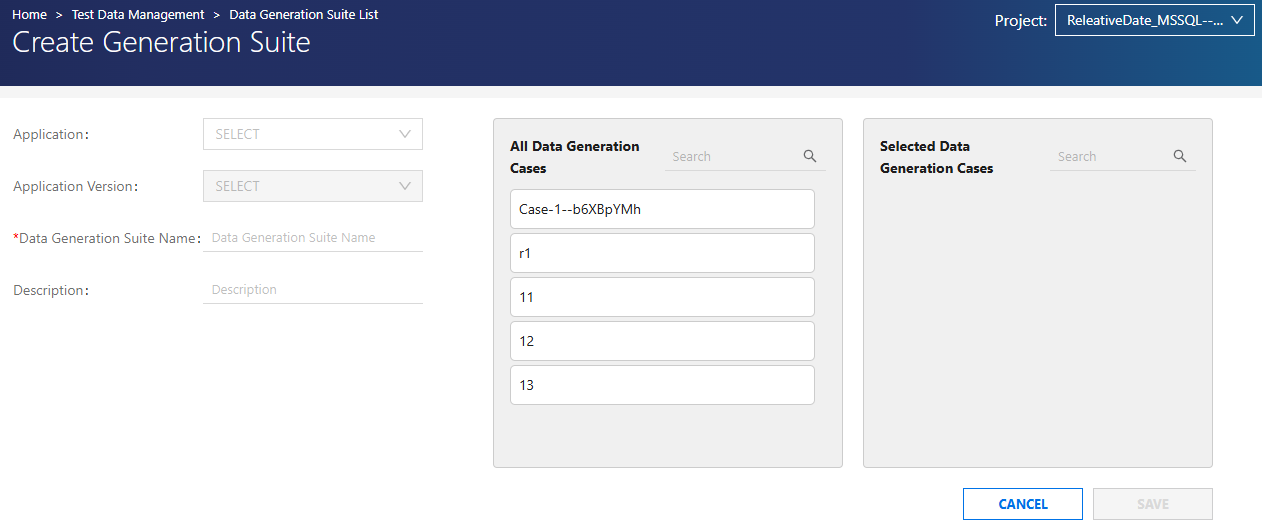
To create a new Data Generation Suite, Click NEW and fill in the following fields:
- Application
- Application Version
- DGS Name
- Description
- All Data Generation Cases
- Selectable Data Generation Cases
Requirements
- The following fields are mandatory:
- Application
- Application Version
- Name
- Description
- Name is limited to 100 characters.
- Description is limited to 150 characters.
Case Selection
Cases can be added by dragging and dropping between:
- All Data Generation Cases
- Selectable Data Generation Cases
Execution order is important:
- Cases run sequentially based on their order in the Selectable Data Generation Cases list.
Action Details
Delete
- When a suite is deleted:
- Linked Data Generation Cases (DGCs) are not deleted
- DGCs remain reusable for other suites
- All reports related to the suite are deleted
Run
- Click Run.
- Select the cases to execute.
- Configure parameters if needed.
-
Start execution.
-
Execution status can be tracked from the Status column.
Schedule
- Click Schedule.
- Configure execution frequency:
- Run once
- Daily
- Weekly
- Monthly
- Set parameters for included cases.
- Save the schedule.
History
- Displays execution history of the suite and its cases.
- Users can also view case-level history from the Data Generation Cases column.
Logs
- Displays logs for cases within the suite.
- Users can:
- View full or summarized logs
- Download log files
Data Generation Suite Authorization
Authorization for Data Generation Suite Create and List pages is defined as follows:
| Role | Permissions |
|---|---|
| Admin | Access to all suites and all operations |
| Test Manager | Access to authorized suites, full operations |
| Tester | Access to authorized suites; can manage only suites they have created |
Authorization Details
Admin users can manage all suites.
Test Manager users can manage authorized suites.
Tester users:
- Can create, update, and delete their own suites
- Cannot modify suites created by other users