Settings
Settings
The Settings menu is used to manage environments, user groups, target definitions, and system configurations.
Target Definitions
Used to define targets for Shift Flow operations and store target configurations used during data export.
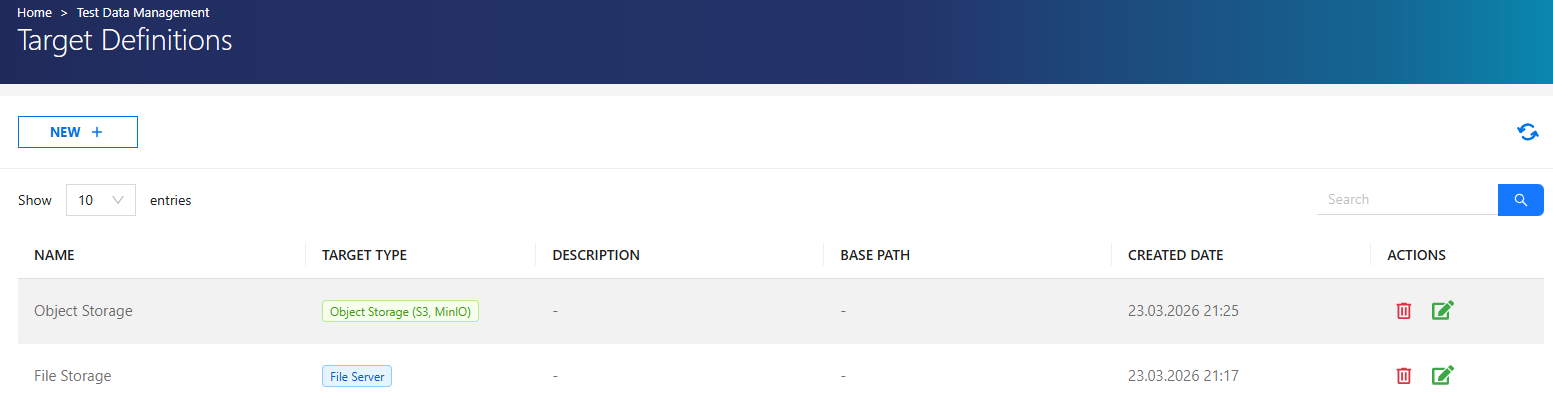
Create a New Target Definition
- Click +NEW.
-
Enter:
- Name
- Type
- Description
- Base Path
- Credential
- Share Name
-
Click TEST CONNECTION.
- Click Save.
Environment
Used to create and manage environment connections.
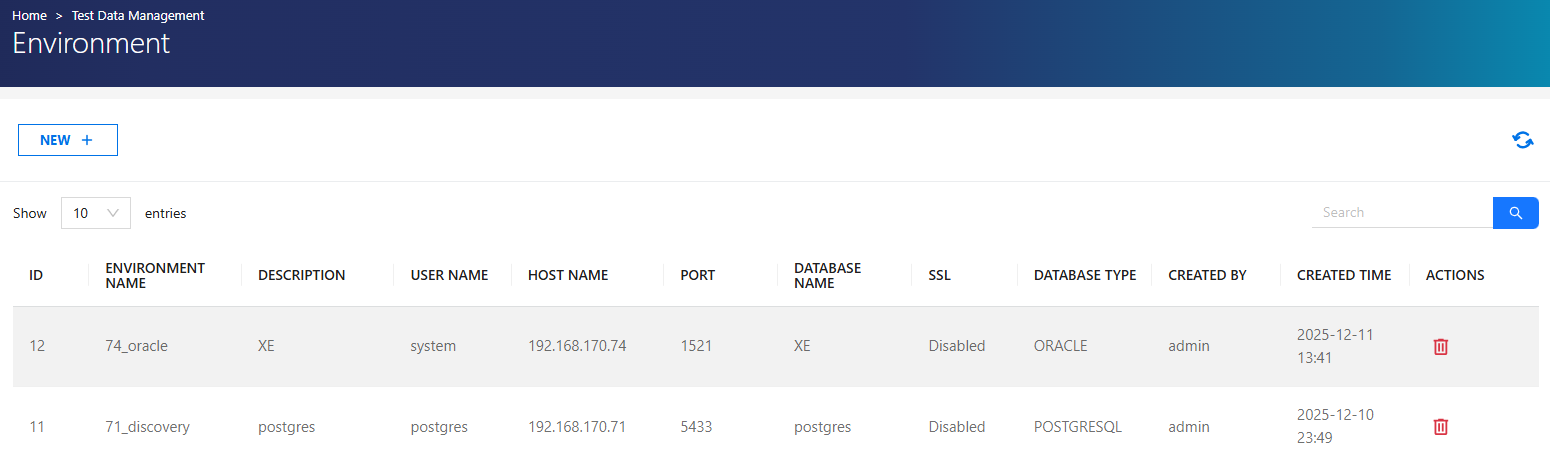
Create a New Environment
- Click +NEW.
-
Enter:
- Source Name
- Database Name
- Description
- Database Type
- Username
- Password
- Hostname
- Server Port
-
(Optional) Enable SSL Enabled if required.
- Click TEST CONNECTION to verify.
- Click Save.
TLS 1.3 Configuration
If the environment uses TLS 1.3:
On first connection:
- Copy certificates from the environment URL to:
../extensions/certificates/<environment_name>
If the folder does not exist:
- Create it manually under
../extensions/certificates - Copy certificates into this folder
Permission Requirements
Set certificate ownership properly
Permissions:
- Owner → Read & Write
- Group/Others → No access
JDBC URL Examples
PostgreSQL:
jdbc:postgresql://<host>:<port>/<databaseName>?ssl=true&sslmode=require&sslcert=<path-of-server.crt>&sslkey=<path-of-server.key>
MySQL:
jdbc:mysql://<host>:<port>/<databaseName>?ssl_ca=<path-of-ca-cert.pem>&ssl_cert=<path-of-client-cert.pem>&ssl_key=<path-of-client-key.pem>
User Groups
Used to list and manage user groups.
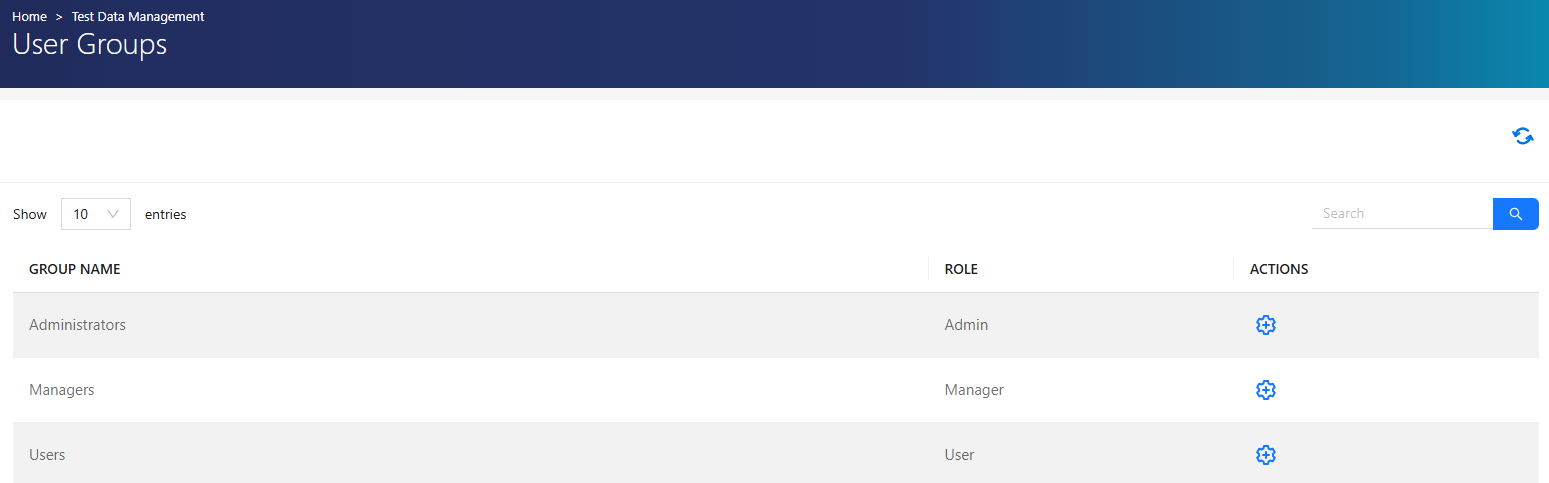
Edit User Group
- Click Edit from the Actions column.
- Update required fields.
- Click Save.
System Config
Used to manage drivers and license information.
Drivers Tab
- Add, update, or delete drivers.
Add a New Driver:
- Click +New
-
Enter:
- Name
- Version
- Description
- File
-
Click Save
Note
After the driver is installed, the containers must be restarted for the changes to take effect.
Licenses Tab
- Manage license files.
Add a New License:
- Click +New
-
Enter:
- Driver
- Name
- Version
- Description
- File
-
Click Save
Editing and deletion actions are available from the Actions column.
Settings Authorization
| Role | Permissions |
|---|---|
| Admin | All operations |
| Test Manager | No access |
| Tester | No access |